Player control¶
The application can drive a LaserDisc player over its serial port: read what disc is in it, work out how long the side is, and then capture that side by itself — spinning the disc up, watching the address go by, and stopping both the capture and the player at the end.
It is off until you turn it on, and while it is off no serial port on your machine is opened, written to, or even listed.
Everything to do with the player is on the Tools ▸ Player submenu, above the ones for this machine. One player, set up once, is a tool: it does not need a panel of its own on screen, and the status bar says whether it is connected.
| Tools ▸ Player ▸ | What it is |
|---|---|
| Player control | The on/off switch. Nothing touches a serial port while it is off |
| Search now | Look again straight away rather than waiting |
| Remote control… | The player window: transport, connection, disc codes, manual commands |
| Examine disc… | Find out what is in the player, and report it |
| Automatic capture… | The four-page workflow that takes a side by itself |
Player settings — which model, which port, which speed, the ports never to open — are on the Player tab of File ▸ Settings…, because they are configuration rather than something you do to a player.
Turning it on¶
Tools ▸ Player ▸ Player control, or the Look for a LaserDisc player box on the Player tab of File ▸ Settings….
The rest of that settings page is optional and every field defaults to "work it out":
| Setting | Default | When to change it |
|---|---|---|
| Player model | Whichever answers | Never, really. The player says which model it is, so this is a check rather than a choice — set it and you will be told if something else answers |
| Serial port | Find it automatically | When you have other equipment on the machine's serial ports. A port chosen here is the only one that will ever be opened |
| Speed | Work it out | When your player's rate is fixed and you would rather not have it searched for |
| Ports never to open | Empty | The other half of the same concern — see below |
Once a player has been found, the port and the speed it answered at are remembered, and the next launch goes straight there.
What searching for a player actually does¶
Worth knowing before you switch it on, because it is the one part of this application that reaches outside itself.
A search opens each serial port in turn and writes a few bytes to it — the Pioneer model request — at each speed a player can be set to, and listens for an answer. On a machine where a serial port is a UPS, a scientific instrument, or something that reprograms itself when it sees the right bytes, that is not free.
So:
- It only happens when player control is explicitly enabled.
- The remembered port is tried first, so a machine that has already found its player scans nothing.
- A port you name in Serial port is the only one ever opened.
- Ports listed in Ports never to open are skipped, and that list is remembered.
- A port that is busy is skipped rather than fought over.
If something answers and is not a player, the application says so and names the port, so you can add it to the exclusion list rather than having it probed every time.
When the player is not found¶
The status bar says that nothing is connected, and what it is doing about it — searching, excluded, or switched off. Tools ▸ Player ▸ Remote control… is greyed out until a player answers, because there is nothing there to drive; a remote left open when the link goes stays open, and its Connection tab says what happened.
In rough order of likelihood:
You are not allowed to open the port. The commonest first run there is, and it looks like a fault in the cable if you do not know to expect it.
- Linux: serial devices belong to a group —
dialouton Debian, Ubuntu and Fedora,uucpon Arch and its derivatives.sudo usermod -a -G dialout $USER, then log out and back in. A group you have just been granted does not apply to the session you are already in, which is why "I added myself and it still does not work" is so common. This applies to the Flatpak too — the sandbox keeps your groups, it does not route around them. - macOS: not really a permission problem, since
/dev/cu.*is open to everybody. It is the driver. An adapter using the built-in FTDI or CH34x support appears as/dev/cu.usbserial-…and needs nothing installed; one that needs a vendor driver also needs that driver allowed in System Settings → Privacy & Security after you install it, and until it is, its port either does not appear or will not open. - Windows: no group to join. A COM port can only be held by one program at a time, so close any terminal or logging tool that might have it, and check Device Manager → Ports (COM & LPT) for the adapter's driver and its port number.
Nothing answered anywhere. The player is off, its serial port is disabled in its own setup menu, or the cable is wrong: Pioneer industrial players generally take a straight-through cable to a PC, while several consumer decks want a null-modem. If nothing answers at any speed on any port, doubt the cable before anything else.
Something answered and it was not a player. Named with the port and what it said. Add the port to the exclusion list.
An unrecognised player. It connects anyway, using the standard Pioneer command set, and the Connection tab shows the model code it reported. Most controls will work and some may not — and that model code is exactly what is needed to write a definition for it, so it is worth reporting.
The player window¶
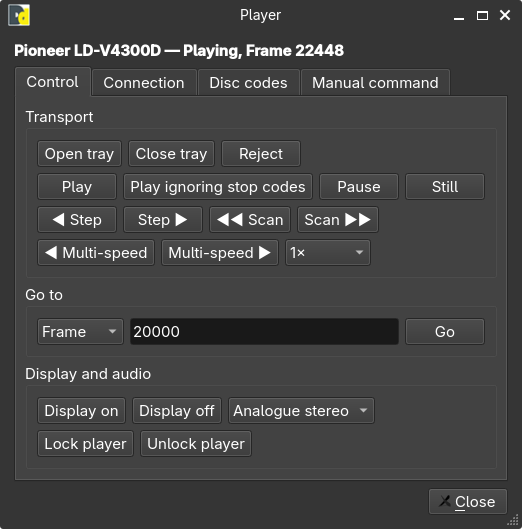
Tools ▸ Player ▸ Remote control…. The status line across the top — what the player is, what it is doing, where it is — stays in view whatever else you are looking at, because it is the one thing every part of this window wants. Below it, four tabs, in the order they are wanted:
| Tab | What is on it |
|---|---|
| Control | Transport, go to, display and audio, and the front-panel key lock. The remote you actually use |
| Connection | The on/off box, what was found and on which port, whether the model matches what you asked for, and the live state, tray, disc and position readouts |
| Disc codes | The two user-code reads and the raw bytes they returned |
| Manual command | Send a command by hand and see the reply |
It is not modal — you can drive the player while watching the spectrum, which is the whole point of it. A control your model does not have is greyed out and its tooltip names the models that do have it. Losing the player greys the Control tab rather than closing the window, which leaves Connection there to say what happened.
Control and Connection are what a normal session uses. The other two are for adding support for a player this build does not know, and they are behind tabs because between them they were most of the height of the window they used to share.
The manual command field shows what went out beside what came back, refusals included. It is the fastest way to find out what a player does with a command this application does not offer, and its answers are what a new model definition gets written from.
The user codes are informational
A disc's user codes are read and shown, and nothing is ever derived from them — not the length, not the side, not the start or the end. Their field meanings are inferred rather than documented, and they are absent on perfectly healthy discs. The one that matters: the Pioneer code is not a query. The player searches to the lead-in to answer it, which on an LD-V4300D takes about eleven seconds and leaves the disc parked at the start.
The disc must be playing to read either code
A stopped player refuses both user-code requests, and it refuses them in the same words it uses for a disc that carries no code at all — so a refusal on a parked disc reads like a finding about the disc, and is not one. Play the disc and ask again before concluding that a code is absent. The examination spins the disc up first for this reason; the buttons in the player window do not.
Two ways to take a capture¶
A connected player does not change how a capture is taken; it adds a second way of taking one. Both write the same file, with the same metadata beside it.
By hand. Press Start capture, press Stop capture. The player is yours to drive — from its own front panel, or from the player window — and this application sends it nothing you did not ask it to. Naming is optional, and the Naming… dialog can fill three of its fields from the disc rather than from you: see Ask the player.
Automatically. Tools ▸ Player ▸ Automatic capture… walks four pages: what is in the player, what to take off it and where to put it, the run, and what happened. It examines the disc, names the capture from what it found, drives the player through the side, and stops both at the end. See Capturing a side by itself.
The manual path is the one to use when you are setting up, checking a disc, or capturing something that is not a whole side of a LaserDisc. The automatic path is the one for working through a stack of discs.
Ask the player¶
In the Naming… dialog, with a player connected, Ask the player fills in the disc type, the video standard and the side from the disc itself. It takes a couple of seconds and does not move the disc: it asks the player what it has, reads the disc's own programme status and its TV system, and stops there. It is not the examination below — nothing is sought and nothing is measured.
What it fills in, it ticks. What the player could not answer is left exactly as it was, and so is everything only you can know — the title, the notes and the mint marks are never touched. Ask the player has the rest of the rules.
It is a shortcut for the manual path. An automatic capture does not need it: its first page has already examined the disc, and the same fields arrive filled in.
Examining a disc¶
Tools ▸ Player ▸ Examine disc…, then Examine. It takes about a minute, and it spins the disc.
What it establishes, and how:
| Where it comes from | |
|---|---|
| Whether there is a disc, and whether the tray is open | The player, asked |
| CAV or CLV, and therefore whether the disc is addressed by frame or by time | The disc's own programme status |
| Disc size, side, and whether it has chapters | The same reply |
| NTSC or PAL | The TV system request — the disc's standard, not the one the player is outputting, which are different answers on a converting player |
| The first and last addresses of the programme | Measured, by seeking past each end and reading back where the player actually stopped |
| Both user codes | The player, asked |
Every line of the report says where its answer came from, so a measurement and a guess do not look alike, and anything that could not be established reads not known rather than as a blank or a zero. A player that refuses half of these still produces a usable report with the other half in it.
The report is copyable — it is meant to be pasted into an issue.
The player is put back the way it was found. The examination has to spin the disc up to ask most of these questions, so if it was stopped when you started it is stopped again at the end. A disc that was already playing is left turning and held still rather than stopped — putting it back means putting it back, and stopping a disc somebody had running would be as much of a change as leaving one spinning that they had not. Either way the disc ends up at the start of the side, because that is where the last measurement leaves it.
This window is the diagnostic rather than the way to a capture. If all you want is the capture, go straight to Automatic capture…, which examines the disc as its first step. If you are already looking at a report, Automatic capture… on it takes you into the same workflow with the disc it just measured, on the settings page — the disc is not examined a second time.
Capturing a side by itself¶
Tools ▸ Player ▸ Automatic capture…, or the Automatic capture… button on the Capture panel, or the button of that name on an examine report. All three open the same window, and only one of it exists at a time.
Four pages. Previous and Next are at the bottom right; Close is at the bottom left, the width of the window away from them, because a Close sitting beside a Next is a few pixels and one word away from the button you meant — and on the last page of a forty-minute capture that is an expensive slip.
1. What is in the player¶
The examination starts by itself when you arrive here, because choosing an automatic capture has already said what should happen first. It reports what it found, and Examine again is there for when you have changed the disc.
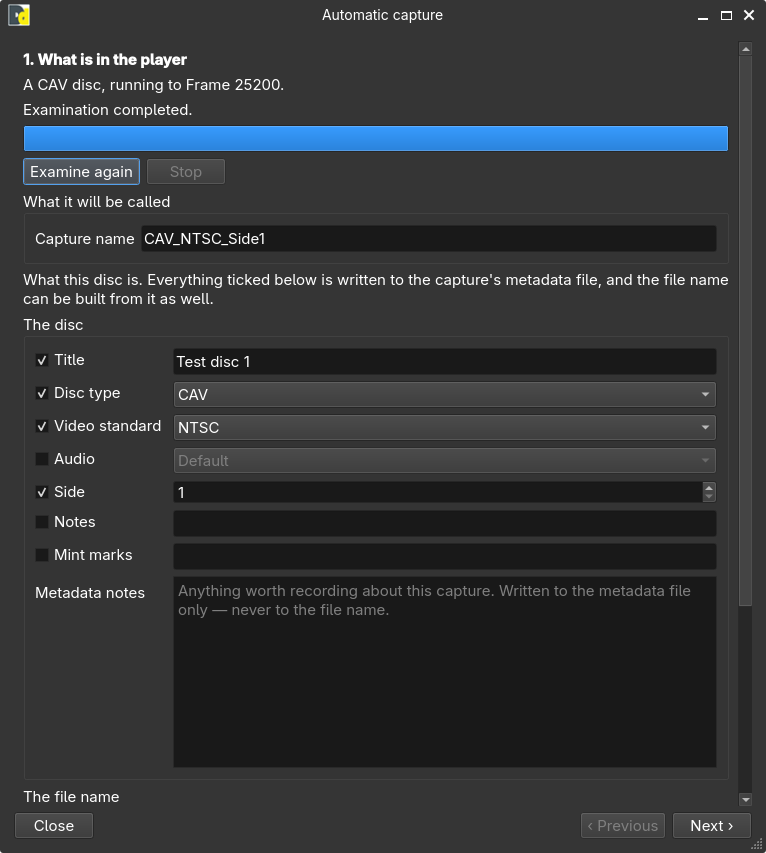
Below the report, two blocks. What it will be called is the capture name, prefilled and resolved against the folder you are writing to, so the suggestion is never a name the file will not get. Under it, the same naming fields the Naming… dialog has — what the disc is — also prefilled from what the examination found. The two are separate because they are separate things: the name is what the file is called, and the fields are what the disc is, even though the second can build the first.
Next is available once the disc's type and the measured end of the side are both known. Those are what a plan is built from, and a page that let you past without them would offer everything on the next page and then refuse all of it.
2. What to capture, and where to put it¶
The plan, and the destination — folder and format — together, so that setting up a capture does not mean a detour to the Capture panel and back. Both are the same settings that panel shows: change one here and it changes there, because there is one settings file and not two.
The sample rate is stated rather than offered: 40 MSPS, a LaserDisc's full rate. The 20 MSPS setting exists for VHS and other tape formats, whose RF is a fraction of a LaserDisc's bandwidth, and this window drives a LaserDisc player — a decimated capture here would fold everything above 10 MHz down on top of the signal, and nothing downstream could tell the alias from the disc. If the Capture panel was left at 20 MSPS from some tape work, opening this window puts it back to 40.
The one case it cannot fix is a stream that is already running: the rate is written to the device before the stream opens and cannot be changed under a running one. If you are monitoring at 20 MSPS, this page says so and asks you to stop monitoring first, rather than quietly taking the capture at half rate.
Three shapes, and they are the three a player can actually be asked for:
The whole side, spin-up to spin-down. The capture starts with the disc stopped, so the spin-up is in the file; and the disc is spun down again before the capture stops, so the run-out is in it too. Neither of those is an address, and this is the only way either reaches a file — which is also why this shape stops the player before it stops the capture, where the other two do it the other way round.
From one address to another. The player seeks to the first address before the capture starts, so the disc is already turning throughout.
From spin-up to an address. The front of a whole-side capture: the spin-up, and then as much of the side as you ask for.
There is no "capture the lead-in" option, because no command puts a player on the lead-in. The two shapes that hold it get it by starting the capture before the disc.
The addresses offered are in the units the examined disc actually uses — frames for a CAV disc, a time for a CLV one, never both — and they are bounded by the length that was just measured, so a range that cannot exist cannot be typed.
A time is entered as its own fields, each saying which unit it is: minutes and seconds,
with an hours box added only for a side that runs past the hour, which almost none do. There
is no 0:00:00 box to get the colons and the leading zero right in — a format somebody has
to get right before the application will accept it is a format that will be got wrong. The
minutes box stops at the measured length of the side, and the seconds box stops at 59, so
"1:99" is not something you can type and then be told off for. Where the examination could not
establish the video standard, this page asks for it; where it could, it does not.
Two options here rather than in the settings dialog, because they are decisions about this capture:
- Lock the player's front panel, which stops a hand on the player pausing a capture halfway through a side. It is released afterwards.
- Stop the capture when the player stops — the one coupling between the two, described below. It is the same setting as the one on the Player tab of File ▸ Settings…; changing it in either place changes it in both.
Under them, the estimate: how long the capture will take and how much it will write, against the free space where it is going. Next is available while the plan is one that can be run, and says why when it is not.
3. The capture¶
Start capture, and then the stage it is in, the current address, and how long is left. The estimate is not a guess from the rate so far — a disc plays in real time, so the time remaining is the programme time remaining, and it is right from the first reading.
Previous and Next are shut while a run is going, and so is the window: this is the only thing reporting that run, and closing it would leave a disc spinning with no way back to Stop. Stop finishes the capture properly rather than abandoning it — the file is finalised, the player is stopped, and the front panel is released.
The spectrum, waveform and statistics panels are all still live behind it. That is why this window is not modal.
4. What happened¶
Reached on its own when the run ends, because somebody who has left a forty-minute side running wants the answer on screen rather than a button to press for it. It says how the run ended, what was written, and how big it is.
Capture another side is the other half of the ordinary job: turn the disc over, press it, and it moves the side number on, goes back to page 1 and examines again. Both sides of a disc is two clicks rather than a second walk through everything.
Other things worth knowing:
- The capture name is prefilled from what the disc turned out to be. If that name is
already taken you are told what the file will be called instead —
Casper side 1 (1), the way every desktop handles a name already in use. Nothing is ever overwritten. - The disc's facts — model, type, size, side, standard, programme bounds — are written into the capture's own metadata, so the file says which side of which disc it is. Each one carries how it was established; see Naming and metadata.
- If the serial cable fails mid-capture, the capture keeps running. The automation stops and says so, and you stop the capture by hand. The player carries on to the end of the side regardless, and truncating a good capture because an adapter came loose would be the worse of the two failures.
The coupling, and the direction it does not run in¶
There is one setting, on the Player tab of File ▸ Settings… and also on the automatic capture's second page:
Stop the capture when the player stops — off by default, deliberately. A player that briefly reports a stopped transport mid-side would otherwise truncate a good capture. It is debounced when on, and it is still the setting to think twice about. It sends nothing down the serial cable: it watches the status the player is already being polled for and stops the capture, which is the application's own to stop.
It watches for a player that stops, not for one that is stopped: nothing is stopped until the disc has been seen turning since the capture began. Pressing Start capture and then walking over to the player to press Play is the ordinary order of doing things, and the setting leaves that capture alone until the side has actually played.
A capture stopping never stops the player. Outside an automatic capture, nothing in this application sends the player a command you did not ask for — pressing Stop capture during a manual capture leaves the disc exactly where it is, so capturing the first half of a side and then the second is two presses and no disc movement.
The capture application this one replaced had the opposite preference, on by default, and it is deliberately not carried over. An automatic capture still spins the disc down at the end, because there the application is the thing operating the player; a manual capture is you operating it.
Nothing ejects a disc by itself
On a Pioneer player the stop command is Reject (RJ), and a Reject sent to a disc
that is not turning opens the tray. So the rule everything automatic here follows is:
nothing sends a stop to a player it has not just asked about.
Immediately before every stop — the one that spins a disc down so its spin-up can be captured, the one that ends an automatic capture, and the one that puts a player back after an examination — the application asks the player what it is doing, and sends the stop only if the answer is that the disc is moving. If the player refuses the question, or the model cannot be asked, no stop is sent: a disc left spinning is something you can stop yourself, and an ejected one is not.
That matters because "the application started this disc" is not the same as "this disc is still turning". You can stop it from the player's own front panel halfway through a side; a run can end because the player stopped, which is an ordinary outcome and one of the two things the coupling exists to produce. Without the check, the tidy-up at the end of those runs would eject the disc that had just been captured.
The tray commands (OP, CO) exist only on the player window,
where a person presses them — a machine ejecting a disc unasked, with nobody necessarily
in the room, is not something this application does.
Which players have actually been tested¶
An important distinction, and the application makes it too: the Connection tab says when the connected model's command set has not been confirmed on real hardware.
| Model | Definition | Confirmed on hardware |
|---|---|---|
| Pioneer LD-V4300D | Yes | Partly — this project's own bench player. Connection, disc status, TV system and both user-code reads are measured on it; the full checklist has not yet been walked |
| Pioneer LD-V8000 | Yes | Not yet |
| Pioneer LD-V4400 | Yes | Not yet |
| Pioneer LD-V4200 | Yes | Not yet |
| Pioneer LD-V2200 | Yes | Not yet |
| Pioneer CLD-V2400 | Yes | Not yet |
| Pioneer CLD-V2600 | Yes | Not yet |
| Pioneer CLD-V2800 | Yes | Not yet |
| Pioneer CLD-V5000 | Yes | Not yet |
| Pioneer VC-V330 | Yes | Not yet |
| Anything else answering the Pioneer protocol | Generic | Connects, and is driven with the standard Level III command set |
"Not yet" means the definition is inherited from the documented Pioneer Level III command set and is a well-founded expectation rather than an observation. Nothing behaves differently because of it — it is a statement about evidence, and it is the honest answer to "is my player supported?". A definition that has never met its hardware will be wrong somewhere, and the places it is wrong are exactly the ones nobody has looked at.
On normal Pioneer Level III players, ?F reads the Frame Register: a five-digit frame address
on CAV and a frame-precise seven-digit HMMSSFF address on CLV. The LD-V2200 is the observed
CLV exception: it refuses ?F and reports its five-digit HMMSS time code through ?T.
Its definition sends a seek such as TM00100SE for 0:01:00 and converts a reply such as 00002
into the application's normal seven-digit HMMSSFF form. The remote disables Still for a known
CLV disc, while retaining it for CAV and an unidentified disc. The LD-V2200 also returns E04
to both user-code requests; until its meaning is confirmed, the report preserves that reply as
refused rather than saying the disc has no user code. The definition remains unverified until the
full hardware checklist has been completed.
If you have one of these and are willing to walk the checklist, it is in
ddd-gui/src/player/players/README.md
and the full version is in TESTING.md §7. Adding a model is one header file and one line in
a table.
What it will not do¶
- Open the tray as part of an automatic sequence. Tray control stays a deliberate thing you do, never something a capture decides to do.
- Flip the disc. Side two is a second capture.
- Touch anything permanent. Nothing here writes to any non-volatile memory in the player or in the Duplicator. Commands spin discs and move optical assemblies; that is all.